Property basics
In Red Light Center, properties are virtual spaces you can own or rent. They range from small apartments to large themed venues, each with different access levels and licenses.
Every VIP member receives a free Zaby, a private apartment you can decorate and share with friends. Showroom Zabys are simplified versions made for testing layouts or designs. UVIP members unlock access to larger, premium spaces, while business and WG properties are available to licensed users or those renting short-term rooms for work.
All properties belong to a world. Your first Zaby world is created automatically, but you can make new worlds, choose if they’re adult or general, and connect them through a transport hub. Once that’s done, you can browse the property catalog, view 3D previews, and pick a location that fits your plan. Most spaces can be rented monthly or yearly and paid with Rays. Once you buy one, it’s ready to use and decorate right away.
Paying rent and ownership
Most properties in Red Light Center require a regular license fee, often called rent. You can choose between a monthly or yearly plan, with yearly options usually offered at a lower rate. All rent is paid in Rays.
If you forget to pay, you won’t lose the property, but it becomes locked. While locked, you and other users can’t enter or decorate it until rent is brought up to date.
Rent is managed through the Property tab in your Social Center. From there, select the world your property belongs to, choose the location, and open the Licensing tab. You can change your payment plan, select how much rent to deposit, and confirm the payment.
Extra Rays can be stored in the property’s Lockbox. This lets you pay several rental periods in advance so your property stays active automatically. Keep in mind that Rays stored in a Lockbox can’t be withdrawn or transferred, and each property has its own Lockbox balance.
Listing and sharing properties
You can list your property in the World Directory so others can find and visit it. Open the Social Center, go to Property > Manage Property, choose your world, and click Manage. Under the Keywords tab, select a category, add a short description, and include up to 25 tags separated by commas. Tags make your listing easier to find in searches.
Here’s a screenshot of the listings section in RLC where you can browse properties that are for sale:
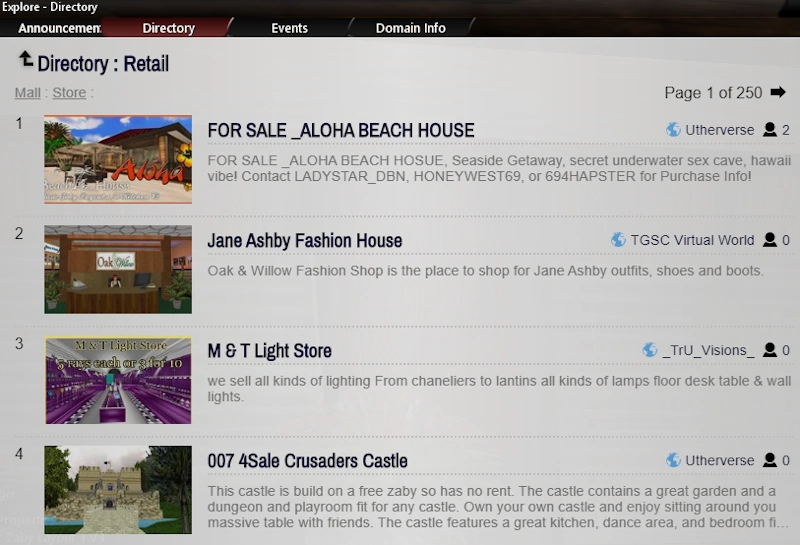
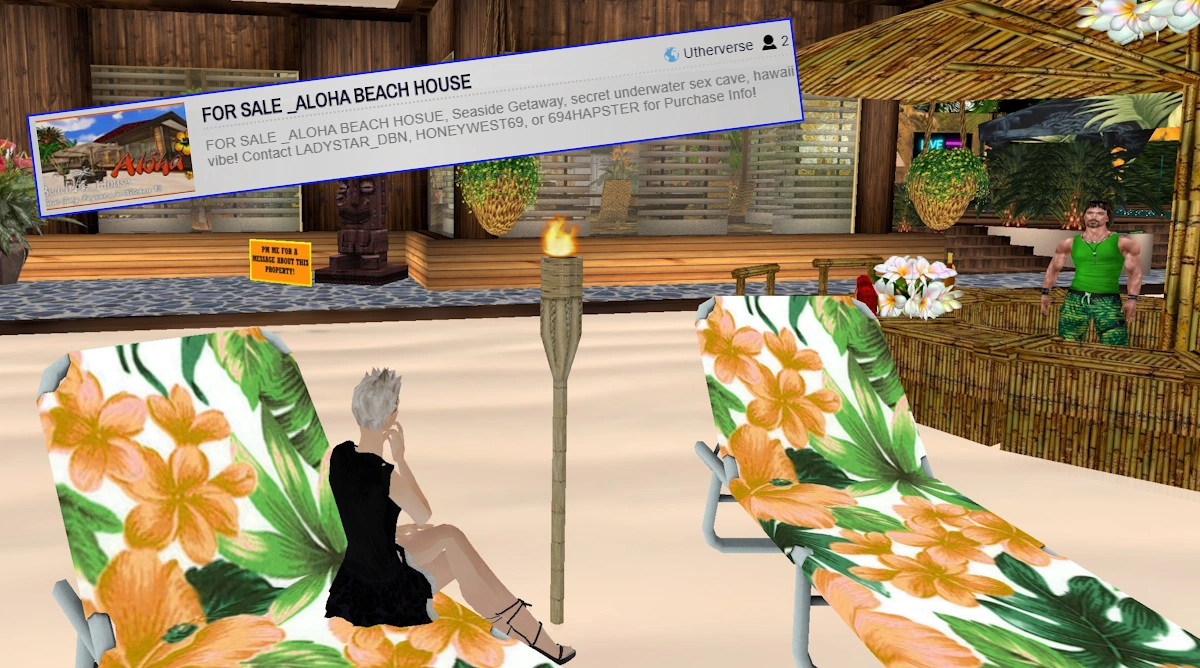
Players can actually visit the listed properties to check them out: just click on the listing and your avatar will be transported to the property in question!
If you ever want to pass a design or location to another player, you can transfer it directly. Layouts and properties can both be sent to other members for a small fee of 20 Rays. Make sure the receiver owns a compatible property type before sending a layout, or the transfer will fail.
To send a layout or property, open its Layouts or Edit tab, click Transfer, agree to the terms, and enter the member’s name. Transfers are permanent, so once sent, ownership and permissions move entirely to the new account. Some special or licensed properties may only be transferable between members with the same role or license.
Decorating your Zaby
You can decorate any property in Red Light Center yourself or hire a decorator to do it for you. Many designers sell ready-made layouts or create custom interiors. They often showcase their work in showrooms or advertise in the Decorator Directory, where you can search by theme and see reviews.
If you want to build your own layout, you’ll use the Prop Editor, the main design tool in the game. It’s available only inside properties you own or where you’ve been given deco permissions. With it, you can create, move, resize, and script objects to design your space exactly how you like.
For surface textures, there’s also the World Texture Editor. From your property’s drop-down menu, open the Texture Editor to pick materials from the library. You can apply them to individual surfaces or fill all matching textures at once, then rotate or resize them until they look right.
The Prop Editor itself includes several key features:
- Position, rotation, and scale: control the objects placement, angle, and size.
- Script and state: add interactivity or adjust properties like lighting and collision.
- Plugins: advanced options for licensed users, such as door tools.
- Clone, save, or delete: duplicate, confirm, or remove props directly from your workspace.
To add a new object, use the creation button and browse the available props. You can also copy an existing one, make adjustments, or delete what you don’t need. For fine-tuning, right-click any prop to select and modify it with the on-screen tools.
Decorating takes time, but it’s what makes each Zaby unique. Whether you’re testing out your first layout or building a full nightclub, the design tools give you complete control over how your world looks and feels.
FAQs and quick fixes
❓ FAQs and quick fixes
- Why can’t I enter my property? If a property won’t load, it’s likely locked due to unpaid rent. Pay the license fee in your Social Center to reopen it.
- My layout disappeared. What happened? Switching layouts or properties can reset what’s displayed. Reapply your saved layout from the Layouts tab to restore it.
- Can I own more than one Zaby? Yes. You can own multiple Zabys and other properties as long as you have enough Rays and available slots.
- Can I transfer my Zaby to another player? You can, but transfers are permanent and cost 20 Rays. Once sent, ownership and permissions move to the new account.
Summary
Owning property in Red Light Center is one of the best ways to make the world your own. Whether you start with a free Zaby or build a full-scale club, every space can be customized, shared, and traded. Keep your rent paid, back up your layouts, and explore the design tools to get the most out of your world.